We all know – content is king. But content takes sooooo long to produce! So we push it to the back burner and post on social media with a “last minute” mentality – i.e. it’s Friday, I’d better post something….
You’ve already spent so much time on your website, so for a certain type of post, you can use your existing content to create social media posts quickly!
In the first step, I will explain how to turn a single blog post into 12 social media posts. These are then meant to be scheduled once a month – giving you one year of monthly content. Now, this will not fill your social media content diary, but it will add a regular post about this particular subject!
Not everyone on social media sees all your posts. So don’t worry about repeating similar content! Also, not everyone is ready to buy from you at this moment in time. You need to keep reminding them that you’re here.
In the second step, you will learn how to use these posts and create 12 graphics in Canva in less than 2 minutes!
You’ve already written the content, now it’s time to repurpose, promote and adapt it to use in a different way or on another platform.
Here’s what you need:
- A published blog post
- ChatGPT (free account is fine)
- Canva (paid version)
- Google Sheets, Excel, or Numbers.
ChatGPT & Canva
ChatGPT is designed to understand and generate human-like text based on the input or prompts it receives. From answering questions to developing content ideas, ChatGPT offers a wide range of applications, especially for content creators and marketers looking to extract insights or repurpose existing material.
Canva is a user-friendly online design platform that allows you to create stunning visuals without needing advanced graphic design skills. There are lots of templates, images, and design elements available and ready to use. You can use Canva to produce graphics for social media, presentations, marketing materials, and more. It has a simple drag-and-drop interface, which makes it easy for design newbies to create professional-looking visuals.
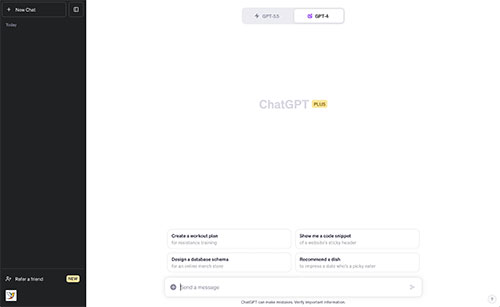
The ChatGPT User Interface
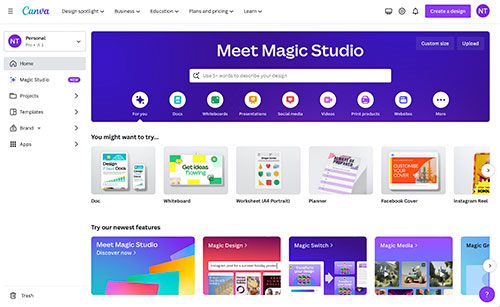
The Canva User Interface
Let’s transform one of your blog posts into 12 social media posts by using ChatGPT and learn how to bulk create graphics in Canva
First of all, you need to know that creating graphics in bulk in Canva is only available in the paid version. However, Canva is such a fantastic design software, it’s really worth signing up. I’d recommend paying a full year in advance as you will get a small discount.
- Open the blog post on your website
- Highlight the complete blog text and copy it.
- Open ChatGPT and enter this prompt:
Remember the following text from a blog article I have written: [paste your blog content here]- Your prompt will look very long, but that’s OK.
- Click enter.
- Now enter this prompt:
Imagine you’re a social media manager. From the above blog post, create 12 [enter social platform here] captions based on the main takeaways from this article. Make sure each caption has a snappy headline. Include one interesting fact from the blog post in each caption. Make sure each caption text contains between 30-50 words. Add an enticing and short CTA for each caption, asking people to click and read the full blog post. Include one emoji in each headline and no more than 3 emojis in the caption. For each caption, create one question that starts with “did you know” or something similar. Format the dataset in a table with the following headers: Question, Headline, Description, CTA
- Highlight the table ChatGPT created and copy it.
- Open a new Google Sheet (or Excel or Pages)
- Insert the data
- Read through the generated captions and amend them if necessary
- Download:
- In Google Sheets, click on File > Download > CSV
- Excel: File > Export > CSV
- Number: File > Export to > CSV
- Open Canva
- Click “Create a design”
- Select the correct format for the platform you want to post to
- Select a template for your post
- Add your logo/business name/CTA
- Add these words where you want the text to appear:
- Question
- CTA
- Select Bulk Create
- Upload CSV
- Map your fields to your text
- Canva field mapping
- Right-mouse click on the text “headline.”
- Select “Connect Data”
- Select the “Question” option
- Right-mouse click on the text “CTA.”
- Select “Connect Data”
- Select the “CTA” option
- On the left, click “Continue
- Then click Generate ALL (#)
- Voila 🙂 Go through the graphics and amend font sizes etc. so that the text is displayed correctly.
- You can now download the graphics
Here’s video tutorial for you on how to bulk create graphics in Canva with content you created in ChatGPT
4 more prompt ideas to generate different social media posts from the same blog article
The important thing here is to use the same chat in ChatGPT. Don’t start a new discussion. You can also keep returning to this chat in a few weeks or months and generate more ideas. I am using the number 2 as an example in the prompts, you can add any number here. Here are the prompts: Quotes:Generate 2 social media captions that contain a quote from the above blog post. Give each caption a snappy headline and a CTA to read the full blog post.
This one works if your blog post contains statistics:
Generate 2 social media captions that have data points or statistics included in the above blog post. Give each caption a snappy headline that contains a data point and a CTA to read the full blog post.
Questions:
Generate 2 social media captions that contain questions relating to the blog content. Give each caption a snappy headline with the question and a CTA to read the full blog post.
Tips:
Generate 2 social media captions that contain a tip relating to the subject of the blog content. Give each caption a snappy headline with the tip and a CTA to read the full blog post.